How do I manage members in Sterndesk?
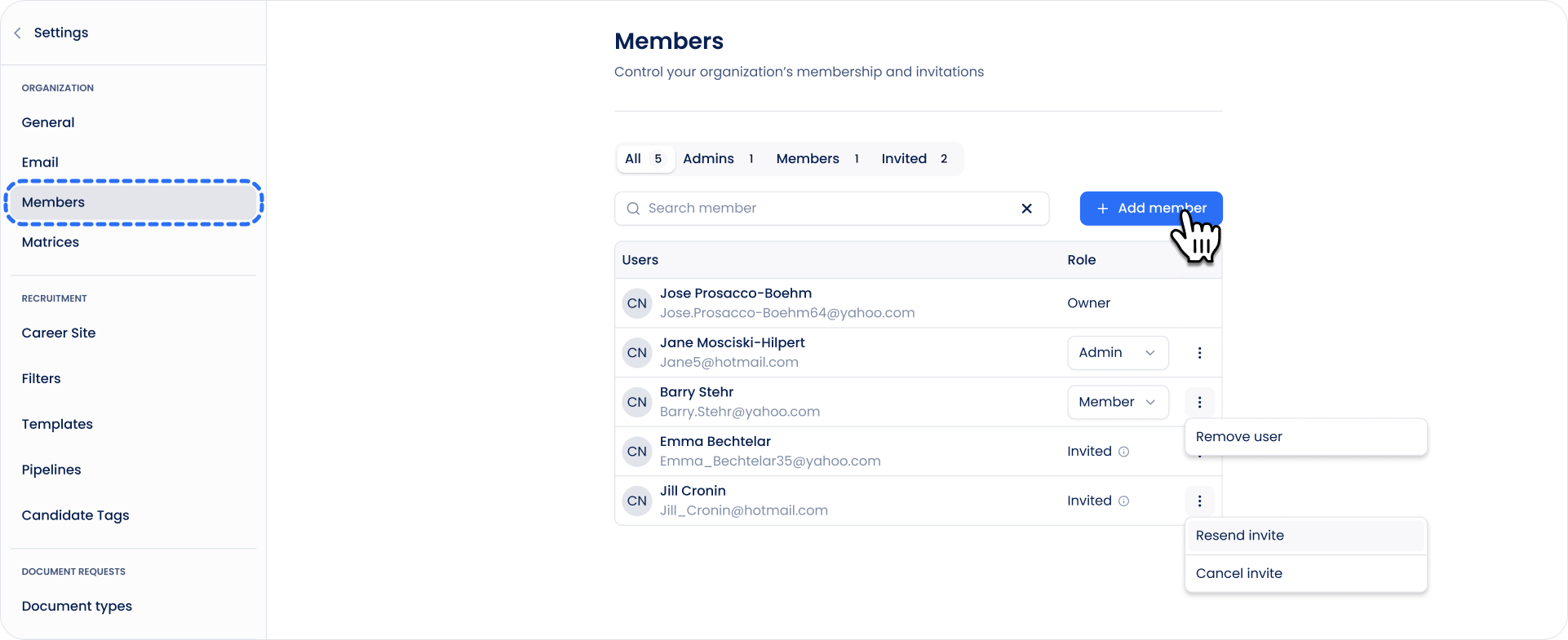
The Members page allows you to manage who has access to your Sterndesk workspace.
From here, you can invite new team members, manage existing members, and monitor pending invitations.
Inviting a New Member
To invite a new team member:
- Go to Settings → Members.
- Click Invite Member.
- Enter the person's email address.
- Select the appropriate role.
- Click Send Invite.
The invited user will receive an email with instructions for joining your workspace.

Member Roles
Sterndesk supports the following roles:
Owner
The Owner has full access to the workspace, including billing, workspace settings, and member management.
Admin
Admins can manage recruitment activities and team members, but may have restricted access to certain workspace settings.
Member
Members can participate in recruitment activities based on the permissions granted to their role.
Not sure which role to assign?
How Do Roles and Permissions Work?
Invitation Statuses
When a user has been invited but has not yet joined the workspace, their status will appear as Invited.
If the invitation is not accepted within the expiration period, it will automatically become Expired and will no longer be valid.
Resending an Invitation
If a team member cannot find their invitation email, you can resend it.
- Open the ⋯ menu next to the invited user.
- Select Resend Invite.
A new invitation email will be sent.
Canceling an Invitation
If an invitation was sent by mistake, you can cancel it before it is accepted.
- Open the ⋯ menu next to the invited user.
- Select Cancel Invite.
The user will no longer be able to join using that invitation.
Removing a Member
If someone no longer needs access to your workspace:
- Open the ⋯ menu next to the member.
- Select Remove Member.
- Confirm the action.
The user will immediately lose access to the workspace.
Managing Your Team
Regularly review your member list to ensure that only active team members have access to your recruitment data and workflows.
Can't find what you're
looking for?