How to send a document request?
Follow these steps to send a request:
1. Open the Document Requests Page
- From the left-hand menu, click “Document Requests.”
- You will be taken to a page showing your previous requests (if any).

2. Start a New Request
- Click the “New Request” button.
- This will open the request creation form.
3. Select a Candidate
- In the Candidate field, choose the candidate you want to request documents from.
- You can search by name or email.
Need help finding the right candidate?
How Do Candidate Search, Filters, and Saved Filters Work?
4. Choose Documents to Request
- In the Documents field, select the items you want to request.
- This list will show document types you have already created (e.g., passport, visa, certificates).
- If you don’t see the needed documents, you must create them first.
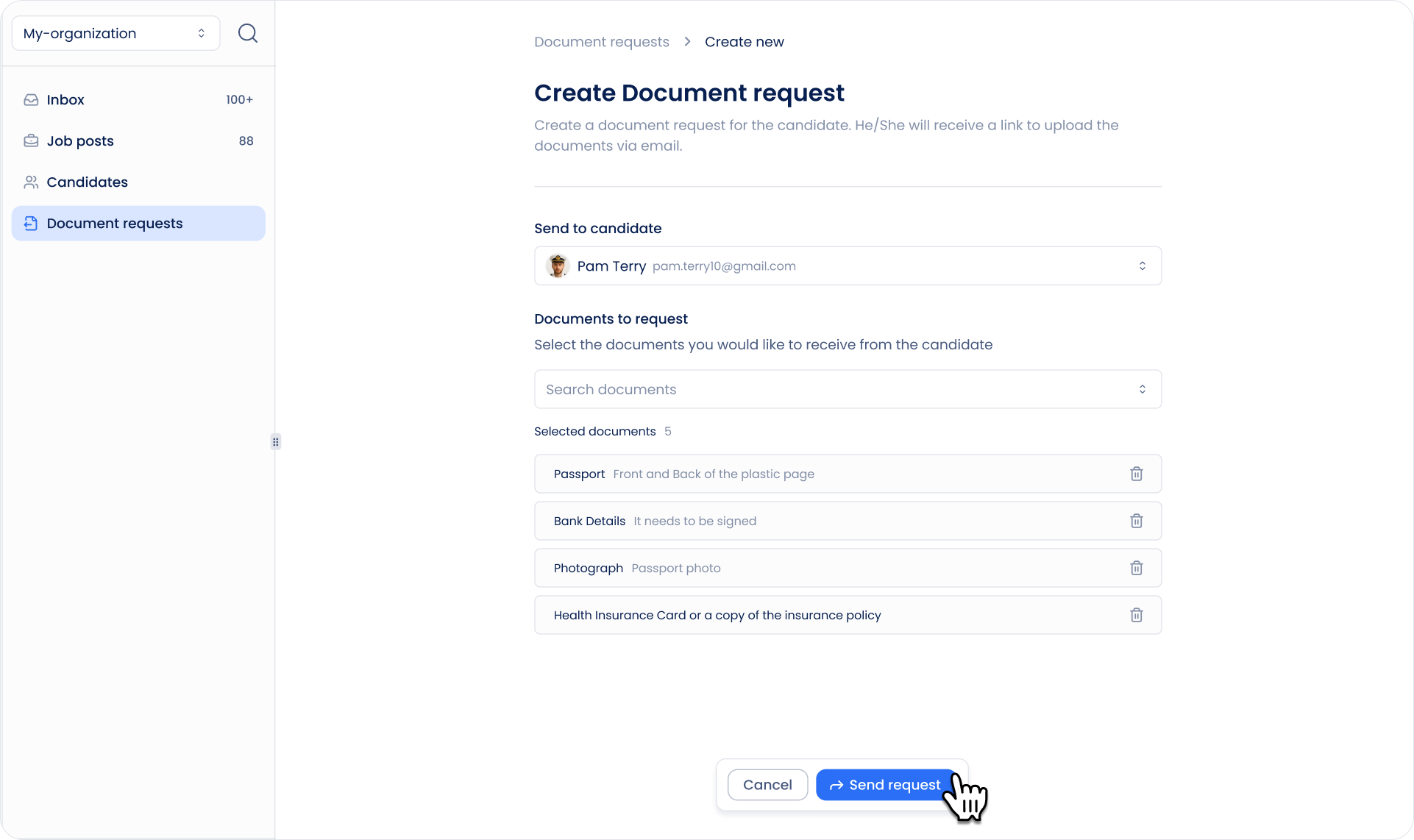
5. Send the Request
- Click the “Send Request” button.
- The candidate will receive an email with a link to upload the requested documents.
The uploaded files will become available in the Candidate Profile.
What Can You See in a Candidate Profile?
🔐 Important Notes
- Link validity: The upload link is valid for 7 days.
- Partial uploads: Candidates can upload documents in parts — they don’t have to upload everything at once.
- Editing: You can edit the request after sending it — add or remove documents as needed.
- Tracking: You can track upload progress and see timestamps for each uploaded file.
Can't find what you're
looking for?