How do roles and permissions work?
Roles help you control what team members can access and manage within your Sterndesk workspace.
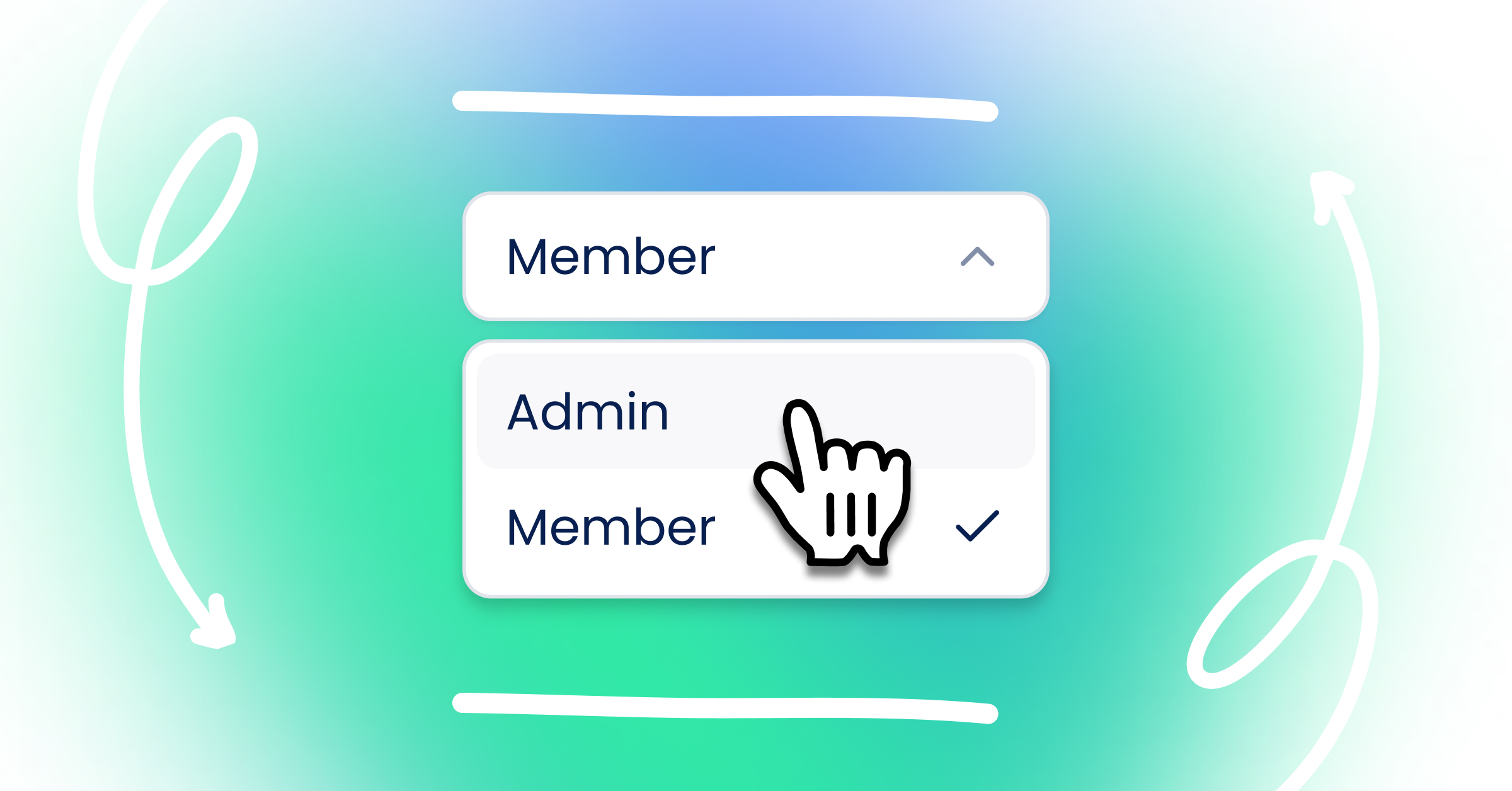
Each member is assigned a role that determines their level of access.
Available Roles
Sterndesk supports three roles:
Owner
The Owner has full access to the workspace.
Owners can:
- Manage workspace settings
- Manage the Career Site
How Do I Set Up My Career Site? - Invite and remove members
- Assign roles
- Access all candidates, job postings, and applications
Every workspace has at least one Owner.
Admin
Admins help manage recruitment activities and team members.
Admins can:
- Manage candidates and applications
- Create and manage job postings
- Manage pipelines
- Invite members
- Remove members
- Access workspace settings
Admins cannot remove or change the role of the workspace Owner.
Member
Members participate in day-to-day recruitment activities.
Members can:
- View and manage candidates
- Review applications
- Work with job postings and pipelines
- Add notes and comments
Members cannot manage workspace settings or team members.
Managing Roles
To change a member's role:
- Go to Settings → Members.
- Open the ⋯ menu next to the member.
- Select Change Role.
- Choose the new role.
Changes take effect immediately.
Learn how to invite, remove, and manage team members:
How Do I Manage Members in Sterndesk?
Invitations and Roles
The invited user will receive the assigned permissions when they join the workspace.
Best Practice
Use the principle of least privilege when assigning roles.
- Assign Owner only to workspace owners.
- Assign Admin to users responsible for managing recruitment operations.
- Assign Member to recruiters and team members who do not need access to workspace settings.
This helps keep your workspace secure while ensuring everyone has the access they need to do their job.
Can't find what you're
looking for?