What's included in a Candidate profile?
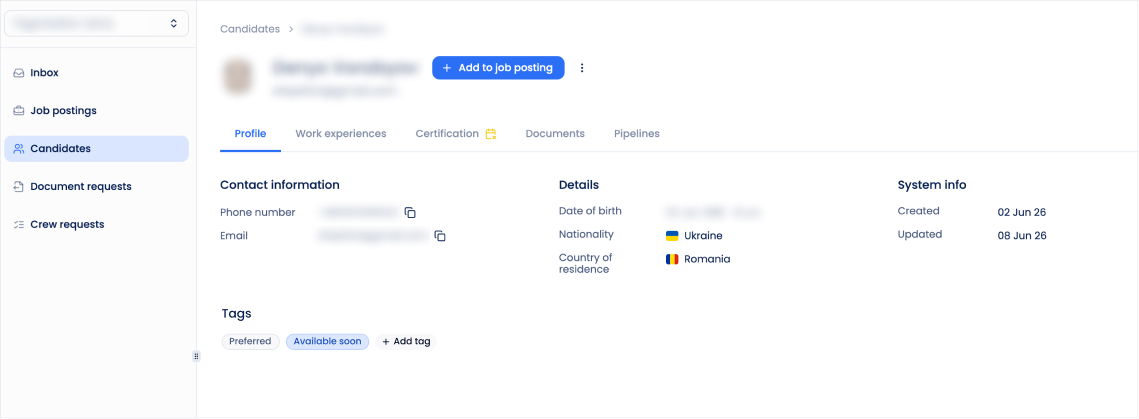
When you open a candidate profile from the candidate list page, you will see the candidate’s full name, email address, current pipeline, and five main tabs.
In the context menu, you can download the profile as a PDF or delete the candidate. Deleted candidates are stored for 30 days before they are permanently removed.
How Do Recently Deleted Candidates Work?
1. Profile
The Profile section contains key information about the candidate, including personal details, contact information, rank, certificates, availability, and assigned tags.
Tags can be used to organize candidates and make them easier to find when filtering candidate lists.
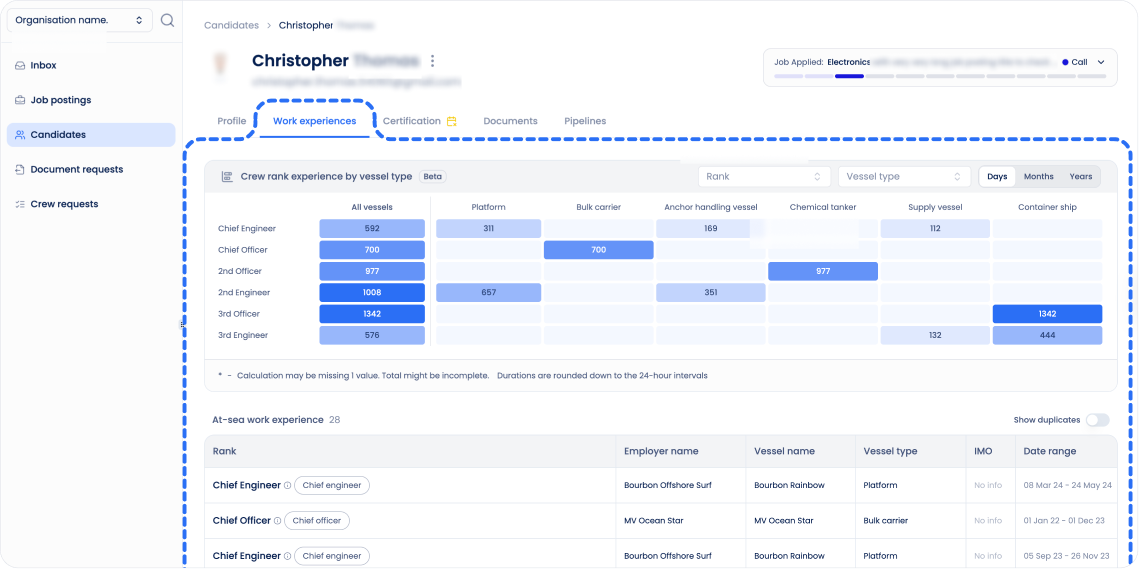
2. Work Experience
Here you will find three tables:
- Crew rank experience by vessel type – shows how long the candidate worked in a specific position on a specific type of vessel. This helps you quickly evaluate their experience.
- At-sea work experience – a structured table with details about the candidate’s sea experience (rank, employer, vessel name, vessel type, IMO, and date range).
- On-land work experience – a structured table showing the candidate’s land-based experience, if available.
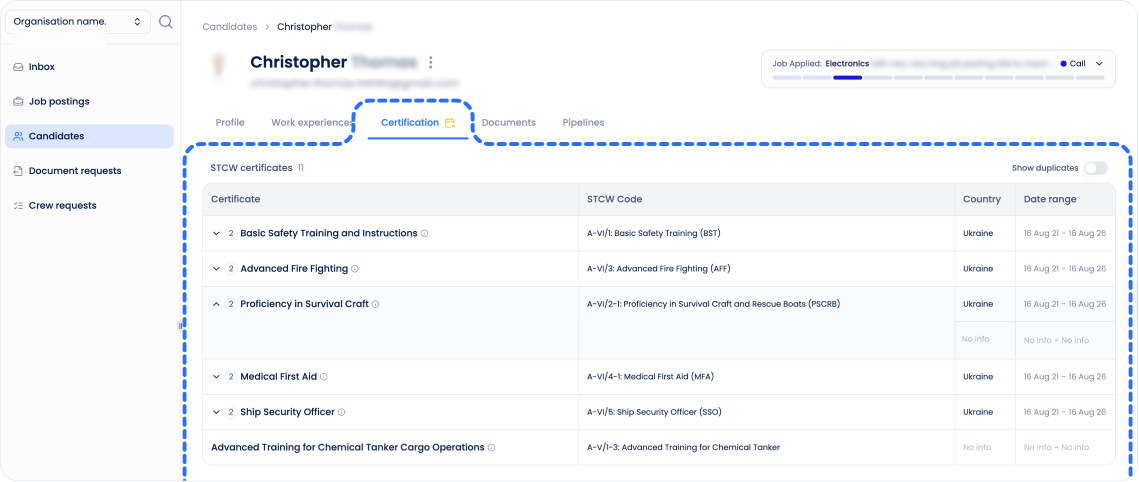
3. Certification
This tab contains a list of the candidate’s certificates.
If a certificate is expired, you will see a yellow calendar icon.
Sometimes a candidate has multiple certificates with the same name and code but issued at different times. In this case, you will see a badge with a number. You can expand the row to view all related certificates.
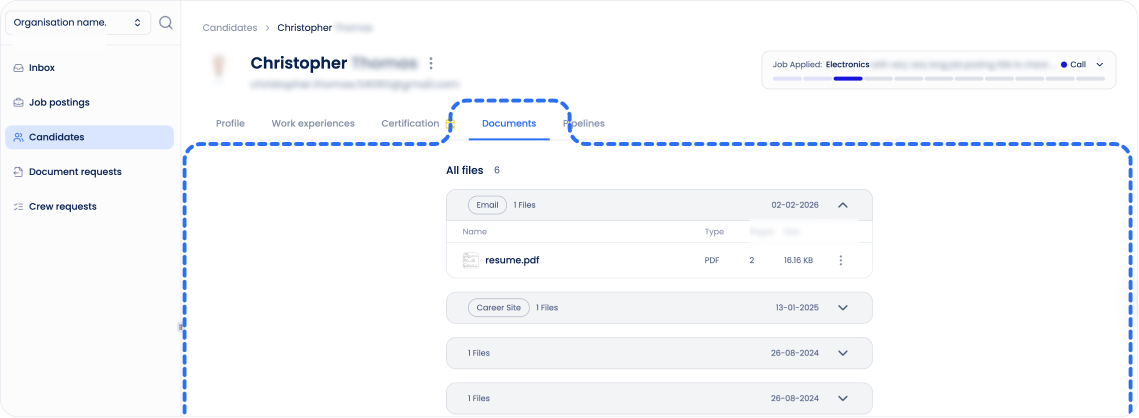
4. Documents
This tab shows documents uploaded to the system. You can see the upload date and the source (for example, career site or a unique email).
Learn how to add candidate documents via email:
How to Import Candidates via Email?
5. Pipeline
If a candidate applies for a job through the career site, they are added to that job’s pipeline.
They can also be added manually by a recruiter.
How Do I Add an Existing Candidate to a Job Posting?
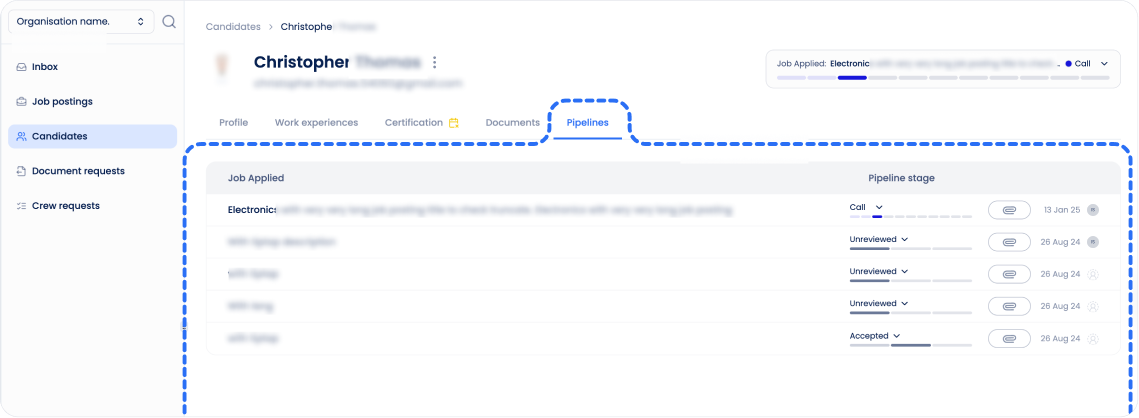
The Pipeline tab shows all job applications associated with the candidate.
If the candidate has applied for one or more job postings, you can see which stage each application is currently in and follow their progress through the recruitment process.
If the candidate has not yet been added to any job posting, the Pipeline tab will simply be empty. Once an application is created, it will automatically appear here.
Can't find what you're
looking for?