How to use candidate tags?
Candidate Tags help you organize your candidate database with custom labels. You can use them to quickly identify groups of candidates and make searching and filtering easier.
For example, you might create tags such as High Priority, Available Immediately, or Interviewed Before.
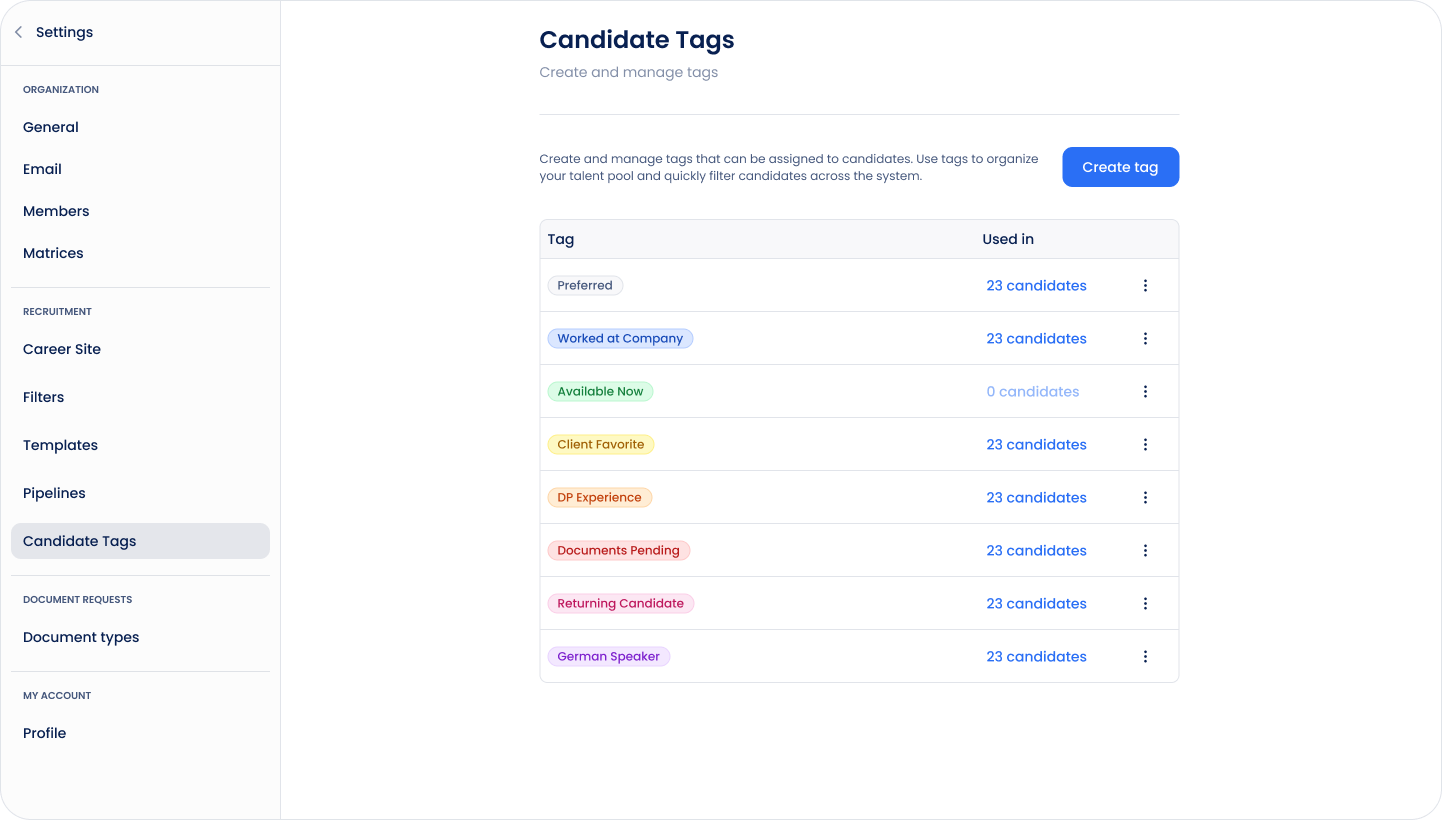
Creating Tags
Before you can assign tags to candidates, they must first be created.
- Open Settings → Tags.
- Click Create tag.
- Enter a name.
- Choose a color.
- Click Create.
You can edit or delete tags at any time from the same page.
Note: Only Owners and Admins can create, edit, or delete tags.
Adding Tags to a Candidate
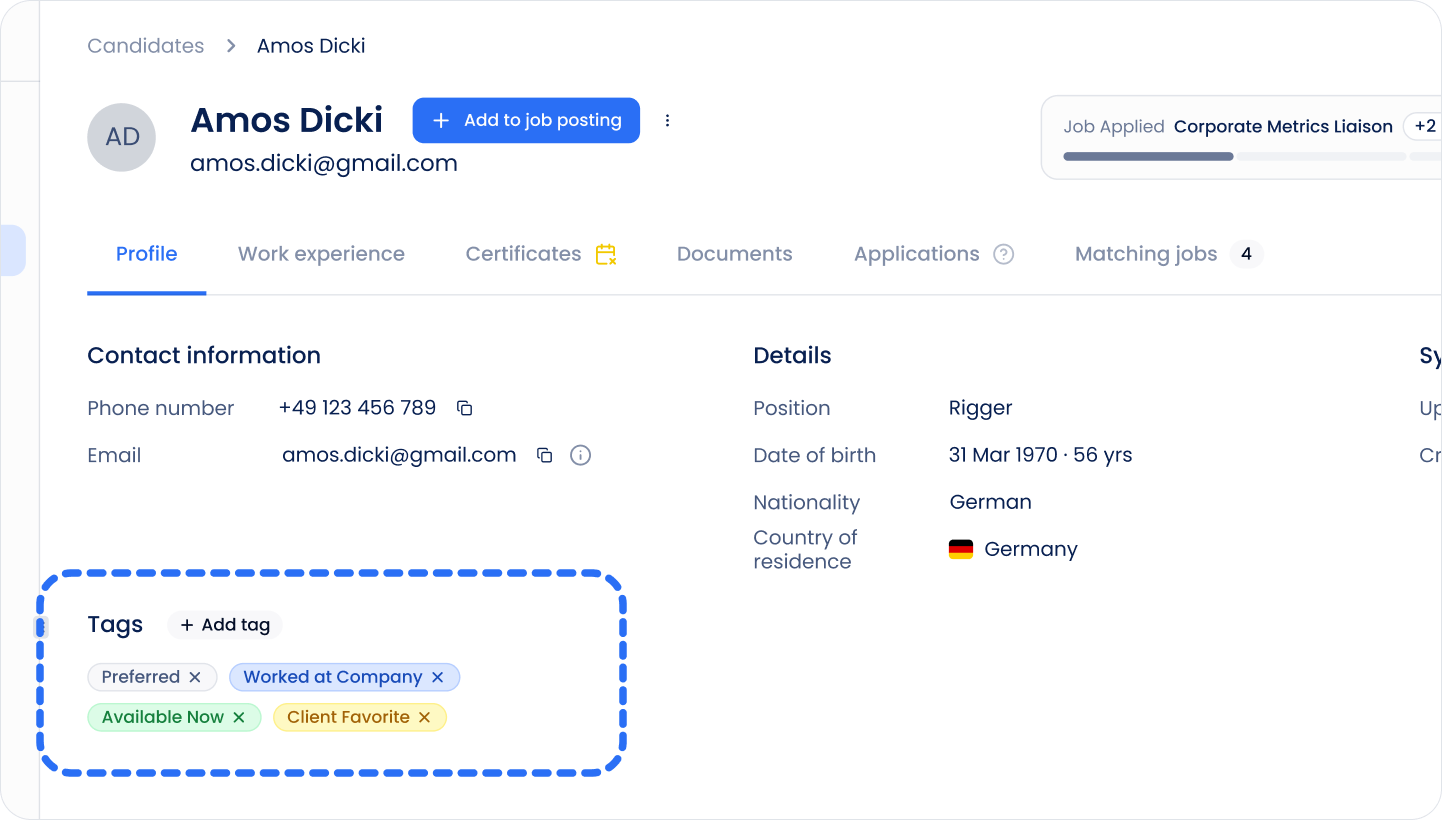
Tags can be added directly from a candidate profile.
- Open a candidate.
- Find the Tags section.
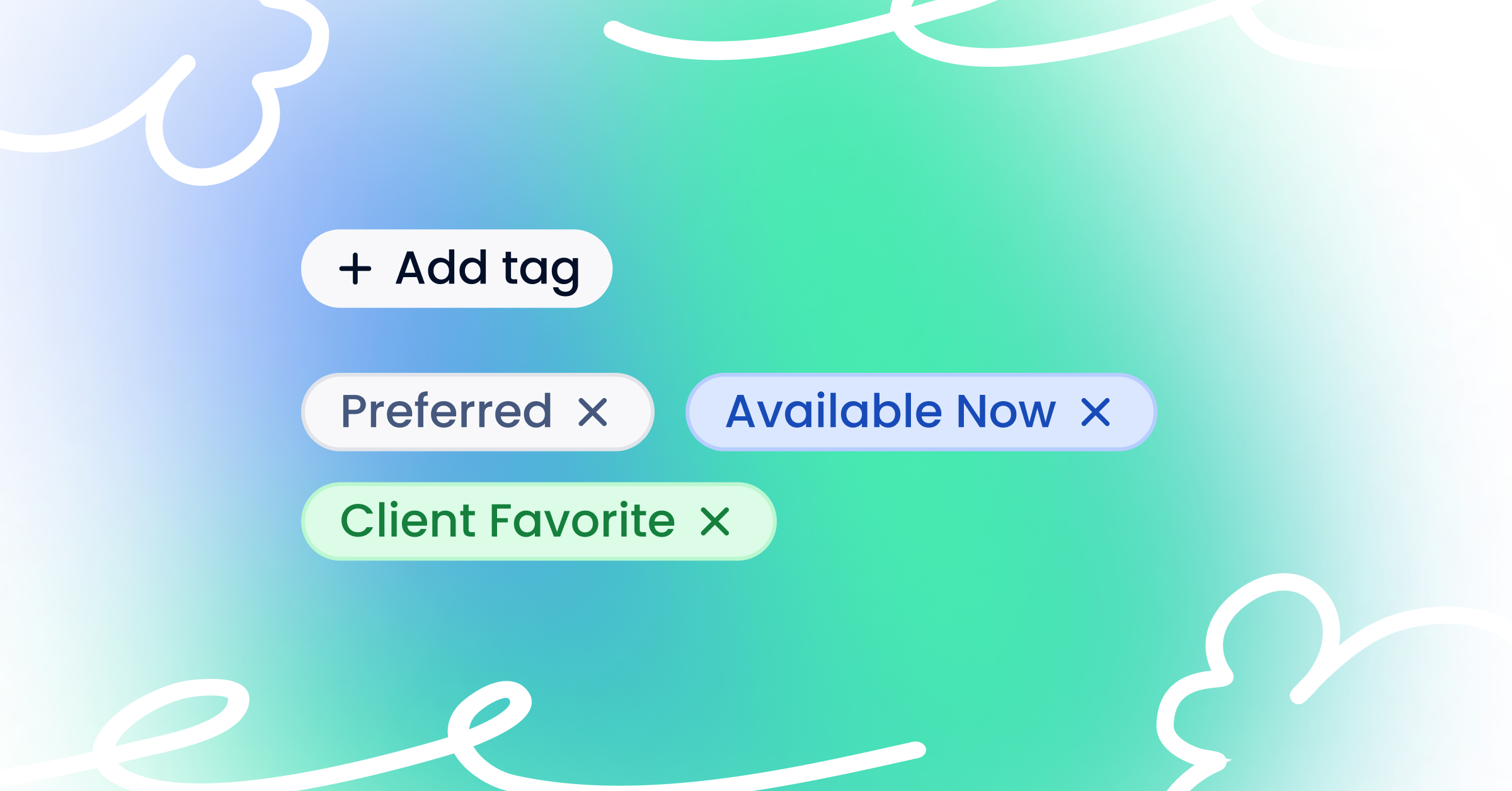
- Click Add tag.
- Select one or more existing tags.
The selected tags are immediately added to the candidate.
Removing Tags
To remove a tag from a candidate:
- Open the candidate profile.
- In the Tags section, click the × on the tag you want to remove.
Removing a tag from a candidate does not delete the tag from your organization.
Filtering Candidates by Tags
Tags can be used as filters on the Candidates page.
- Open the Candidates page.
- Open Filters.
- Select one or more tags.
- The candidate list updates automatically to show matching candidates.
You can combine tag filters with other filters to narrow your search.
Permissions
- Owner and Admin
- Create tags
- Edit tags
- Delete tags
- Add or remove tags from candidates
- Member
- Add existing tags to candidates
- Remove existing tags from candidates
- Cannot create, edit, or delete tags
Tips
- Keep tag names short and easy to recognize.
- Use tags for information that isn't already stored elsewhere in Sterndesk.
- Avoid creating multiple tags with the same meaning (for example, Priority and High Priority) to keep your database organized.
Related articles
Can't find what you're
looking for?